
For each operating system, the device configuration process is completed in three steps:
- Proceeding to a device diagnostic check
- Verifying the supported platforms
- Installing lock-down browsers
Step 1 – Proceeding to a device diagnostic check
A pre-administration hardware check will be available from the student login page of the e-assessment system to help identify devices which may not run well with the SEB or Kiosk lockdown browsers, or the alternative access to the e-assessment.
Step 2 – Verifying the supported platforms
| Operating System | Supported Browser List |
|---|---|
| Windows(Microsoft) | Google Chrome—updated version Mozilla Firefox—updated version Microsoft Edge—updated version |
| Mac OSX 10.13.6High Sierra or higher(Apple, MacBook) | Safari—updated version Google Chrome—updated version Mozilla Firefox—updated version |
| Mac iOS(Apple, iPad) | Safari—updated version |
| Android(tablet) | Google Chrome—updated version |
| Google Chrome(Chromebook) | Google Chrome—updated version |
Each combination of an operating system and a device require:
- a different browser locking software
- a different installation process
Step 3 – Installing the lock-down browsers
SafeExamBrowser
The SEB is a specialized web browser that restricts students’ access to external tools and resources while they are completing the Grade 9 Assessment of Mathematics. The SEB-configuration file regulates access to system functions, other applications and other settings while also pointing the SEB to the assessment and performing a special “handshake” to validate security.
Option 1 – Installing and loading SEB on macOS
- Ensure that your operating system version is higher than 10.13.6 (see Find out which macOS your Mac is using).
- Download the macOS SafeExamBrowser.
- Open the SEB-configuration file.
- Enter the password in the login screen.
Option 2 – Installing and loading SEB on iOS
- Download the SafeExamBrowser App in the App Store.
- Download the SEB-configuration file.
- In the Downloads folder of your iPad, open the SEB-configuration file.
- Enter the SEB password.
- Log in with your email and password.
Option 3 – Installing and loading SEB on Windows
1. Download the SafeExamBrowser Installer.
2. Run the SafeExamBrowserInstaller.exe file.
3. Follow the instructions of the InstallShield Wizard.
4. Open the SafeExamBrowser.
5. Follow the instructions of the InstallShield Wizard.
6. Open the SafeExamBrowser.
7. Open the SEB-configuration file.
8. Enter the password in the login screen.
Kiosk
The Kiosk application can be used on Chromebook devices to restrict a student’s ability to access external resources or tools outside the assessment. Within the Kiosk application, students cannot access the Internet or take pictures or screenshots. Kiosk mode does not affect the student’s ability to interact with the questions or use the assessment tools. Private schools using Chromebook devices must contact technical support for instructions.
Limiting Chromebook AI Features via Chrome Admin Console
The setting listed below can be disabled to limit students’ access to Chromebook AI features through the Google Admin Console. These functions can be disabled via Users & Browsers or Managed Guest Sessions. Please use the following steps to disabled the AI features.
Steps to Disable Chromebook AI Features
1. Log in to your Google Admin Console (admin.google.com) using an administrator account.
2. From the left navigation menu, go to Devices > Chrome > Settings > Users & browsers or Managed Guest Sessions.
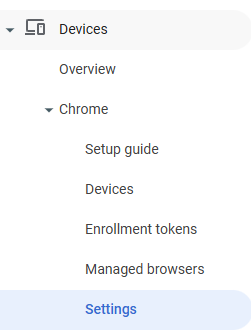
3. On the left-hand panel, select the specific organizational unit you want to configure.
4. Use the search bar at the top to search for the setting that needs to be configured, find the setting’s page and update the configuration accordingly. Ensure that the Save button is selected to lock in each configuration.


5. Ensure to complete the above process with all of the settings listed below.
| Setting Name | Set Configuration To; | Setting Type |
| Generative AI policy defaults | Do not allow GenAI features | General AI |
| Gemini integrations | Do not allow Gemini integrations | General AI |
| Google AI Mode integrations | Do not allow AI Mode integrations | General AI |
| Built-in AI APIs | Do not allow built-in AI APIs | General AI |
| Google Lens overlay | Do not allow Google Lens overlay | Google Lens |
| Google Lens region search | Disable Google Lens region search | Google Lens |
| New Tab page Google Lens button | Do not show the Google Lens button in the search box on the New Tab page | Google Lens |
Alternative access
School administrators will indicate which student(s) require a specific software that is not compatible with either the SEB or the Kiosk application.
Only these students will be permitted to access the assessment through the EQAO login page.
Students not permitted to use this alternative access method will receive an error message if they try to access the assessment in this way.
System Validations (by schools)
School administrators will validate that the lockdown software has been properly installed on the devices.