
As part of our ongoing cybersecurity enhancements, we have strengthened security and access controls by implementing Multi-Factor Authentication (MFA).
How would MFA work on Vretta-EQAO?
The following outlines how users set up, and log in with, MFA on Vretta
How do I set up MFA?
If MFA is required for you, you will automatically be prompted to set it up.
- Use this link, to log in with your email address and password.
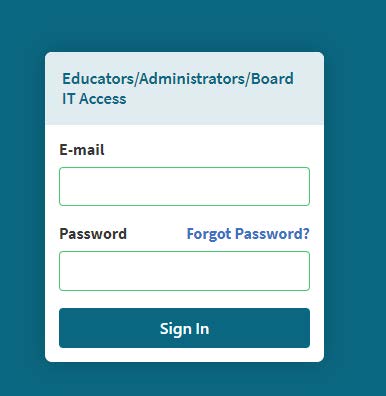
- You will be prompted to set up MFA and see the following screen:
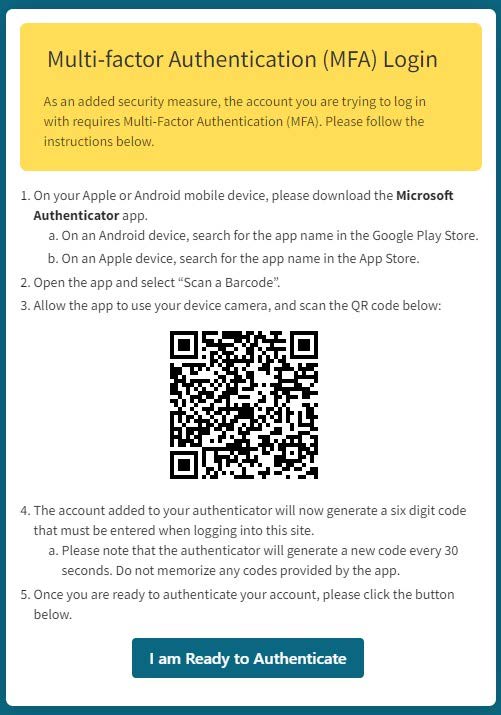
- From this page, you will need to follow the steps listed:
- On your Apple or Android mobile device, please download the Microsoft or Google Authenticator app.
- On an Android device, use either the Microsoft Authenticator or Google Authenticator
- On an Apple device, use either the Microsoft Authenticator or Google Authenticator
- Open the app and select Scan a Barcode.
- Allow the app to use your device camera, and scan the QR code on the screen.
- The account added to your authenticator will now generate a six digit code that must be entered when logging into this site. Please note that the authenticator will generate a new code every 30 seconds. Do not memorize any codes provided by the app.
- Once you are ready to authenticate your account, please click the I am Ready to Authenticate button.
- On your Apple or Android mobile device, please download the Microsoft or Google Authenticator app.
- After this is done, a generated six-digit token will appear in the application they used to scan the QR code. After every subsequent login after the set-up of MFA, the user will be redirected to enter their token after a successful entry of their usernameand password. Please note that tokens expire every 30 seconds, and subsequently, a new token is generated and required to successfully log in every 30 seconds.
- The expiry and regeneration of tokens, and the timing window, is indicated on most authenticator applications. Keep in mind that this token will also be needed if you get logged out of the application because of inactivity. Scanning the QR code and generating the token is therefore recommended being done on a device easily accessible.
How do I log in with MFA?
Please follow these steps on how to login using multi-factor authentication (MFA):
- Use this link, to log in with your email address and password.
- If your login is successful, the following screen will appear:
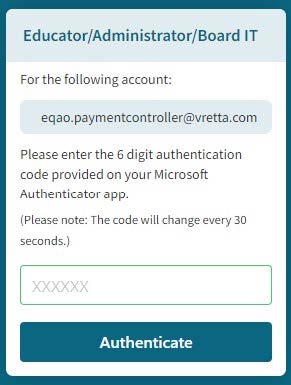
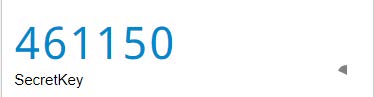
- Enter the token, which can be found in the authenticator application you have downloaded. For example the code may look something like this:
- Incorrect token entries will require the user to sign in with their username and password (step 1) again for security purposes. If the user logs in incorrectly too many times in a row, they will be locked out of the system and required to contact technical support. This is why in the event that a user loses access to their token, they should reset and regenerate a new token using a new QR code, using the Forgot Password button.